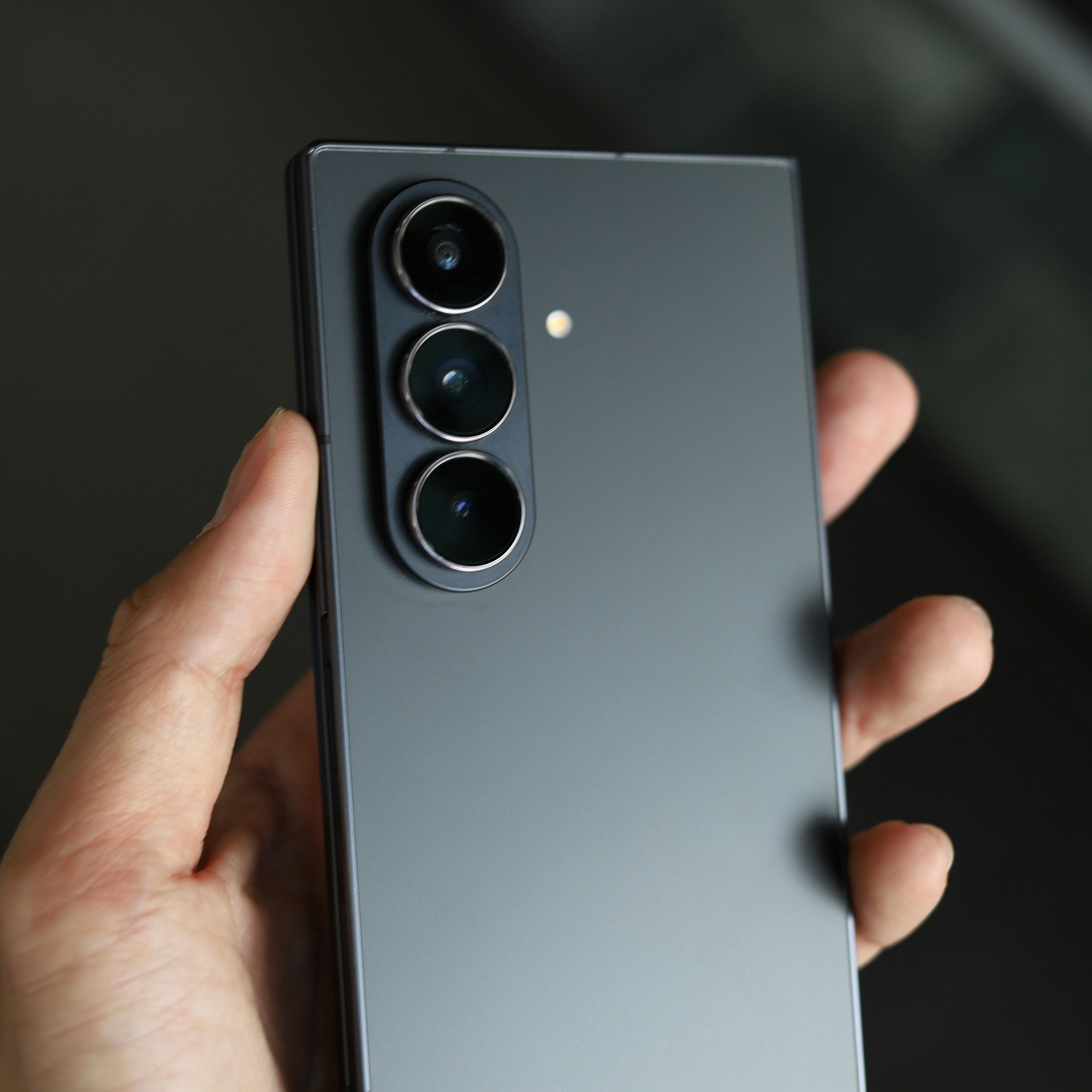
How to Use the Samsung Galaxy Z Fold8 Ultra for Smarter Multitasking
Discover how the Samsung Galaxy Z Fold8 Ultra helps you multitask with its large display, split-screen features, and easy app switching. Get more done with one device.
Get More Done with the Galaxy Z Fold8 Ultra
Working with a smartphone can be quite restrictive at times when you have to constantly move from one email, document, video conference to another, and message app. Although regular smartphones offer a lot of convenience while performing daily tasks, their small screen size may become a hindrance in multitasking.
Whether you’re working from home, busy with your schedule, or traveling for business purposes, knowing how to operate the Galaxy Z Fold8 Ultra will definitely assist you.
Here’s how you can make use of the Samsung Galaxy Z Fold8 Ultra and maximize its usability.
Can the Galaxy Z Fold8 Ultra Handle More than Basic Office Tasks?
Apart from receiving phone calls and sending messages, the Samsung Galaxy Z Fold8 Ultra is expected to facilitate the use of advanced functions. Such capabilities include editing documents, taking part in video conference meetings, research data, and creating materials.
Once it's unfolded, the smartphone’s main 8-inch screen becomes larger than that of a traditional smartphone. It allows using multiple windows and viewing information simultaneously without switching back and forth between them.
For example, you can be looking at a spreadsheet on one window while reading your email on another or watching a presentation and discussing changes in it with colleagues via WhatsApp.
The other helpful feature is Samsung DeX. This allows you to have a desktop-like interface when connecting to an external monitor. You’ll be able to use the keyboard and the mouse when launching your apps on different windows.
Nevertheless, the Samsung Galaxy Z Fold8 Ultra may not entirely be used like a laptop. The main benefit of using the smartphone is the ability to create a more flexible mobile office.
Features that Support Multitasking
Multi-Window makes it Easier for Multiple Apps
The function enables you to open apps simultaneously on the primary screen, including setting up apps in split-screen mode and modifying the sizes of windows based on your preferences.
For example, you can open Google Docs for writing a report, Chrome for research, and WhatsApp for communication with your co-workers. It’ll be possible to have all these apps open at once without having to keep switching between them.
This works well when you want to compare data, create presentations, or conduct multiple work-related conversations.
Taskbar helps You Switch between Apps
Located at the bottom of the screen, it functions in the same way as the taskbar in a PC. instead of going back to your Home Screen for other apps, you can just select it from the Taskbar. This could prove useful for users who frequently switch back and forth between emails, calendar, documents, and messaging apps.
App Pairs make Repeated Tasks Convenient
It can be useful in case you work with the same apps on a regular basis. Instead of having to open and configure each app individually, you can save a group of apps and start using them in tandem.
For instance, you might choose to make an App Pair which includes:
Gmail and Google Calendar for handling emails and scheduling.
Google Docs and Chrome for working and doing research.
Microsoft Teams and OneNote for holding meetings and taking notes.
Pop-Up View keeps Important Apps Accessible
However, at times, you don’t require a new split screen window. It could just be a matter of checking out an email or even getting notified about something.
The Pop-Up View feature enables you to launch certain apps in the form of floating windows above your current app, which you can size according to your requirements. For example, while working on a document, you can open up your calculator in a floating window to check out your calculations without shutting down your document.
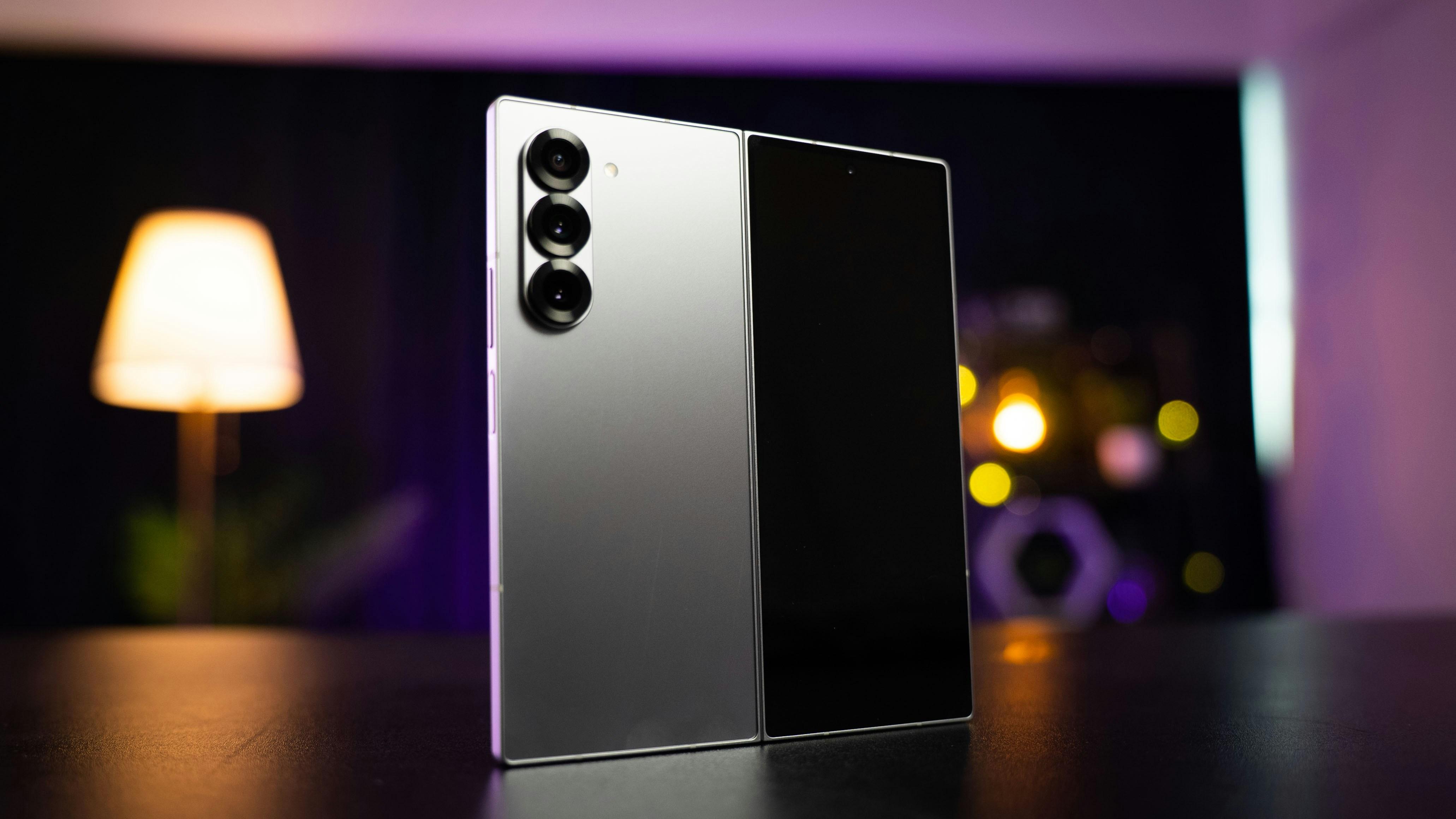
How can You Manage Emails, Documents, and Meetings?
Handling your emails could prove to be a time-consuming task since you have to keep shifting between your inbox, calendar, and other apps. When using the Galaxy Z Fold8 Ultra, it’s possible for you to have your email app open together with your calendar and document editor.
Rather than alternating between the web browser and the document writer, you could open Google Docs or MS Word and Chrome side by side. In this way, it would be easy to cite websites, copy data, and organize your ideas. You may also have the larger screen for viewing sheets, comparing information, and editing quickly.
In addition to the ability to multitask, Galaxy AI may assist in making some tasks easier. Through the use of features like writing aids, content summaries, and Now Nudge, you can manage information and perform daily tasks. Now Nudge can also be used to make contextual recommendations regarding supported activities; thus, facilitating movement between relevant apps.
These features may not necessarily substitute for reviewing or decision-making but they can help save some of the little steps associated with your daily tasks.
When is a Tablet Necessary?
The Galaxy Z Fold8 Ultra is adequate when it comes to screen space for those who deal mostly with email engagement, document editing, meeting attendance, and web browsing. Its folding nature allows it to be more portable than a combination of a smartphone and tablet.
Nevertheless, a tablet would suit you better in case you have to use the computer screen for a prolonged period of time. Illustrators, graphic designers, and digital artists might benefit from a tablet with a big screen for creative activities.
In case you need something portable and handy, a foldable smartphone is a good solution to choose because it offers all usual features of a smartphone with an extra large screen. However, if you need a dedicated space for doing creative work, reading books, or editing, a tablet can be a good choice. Overall, it totally depends on your lifestyle whether you need both gadgets. You might need one of them only.
Samsung Galaxy Z Fold8 Ultra for Smarter Multitasking FAQs
Can I subscribe to a Samsung foldable phone through Cinch? Cinch offers device subscriptions with 3, 6, 12 and 18-month terms. Device availability and subscription pricing may vary, so check the Cinch website for the latest options.
Does Cinch cover accidental damage to the Samsung Galaxy Z Fold8 Ultra? Cinch covers 90% of eligible repair costs, while subscribers pay the remaining 10%. Eligible accidental damage, including certain cracked-display repairs, is subject to the applicable terms and authorised repair process.
Can the Galaxy Z Fold8 Ultra run multiple applications simultaneously? Yes. Its Multi-Window feature supports two-way and three-way split-screen layouts for supported applications. You can also use Pop-Up View to open additional floating application windows.
Does multitasking drain the Galaxy Z Fold8 Ultra battery faster? Running multiple applications simultaneously can consume more battery than using one application at a time. Battery consumption also depends on screen brightness, application activity, network connections and usage habits.
Is the Galaxy Z Fold8 Ultra suitable for students? Yes. Students can use it to read digital materials, research information, edit assignments, attend online classes and take notes. Its foldable display makes it easier to manage several study-related applications together.


 1,614 Google reviews